| |
| |
| |
 |
|
| |
| |
| |
| |
| |
|
|
| |
| |
| |
|
|
|
| |
| |
|
|
Mysql Password Auditor is the FREE Mysql
password recovery and auditing software.
MySQL
is one of the popular and powerful database software used by most of
the web based and server side applications. |
|
|
|
If you have ever lost or forgotten your Mysql
database password then MysqlPasswordAuditor can help you in recovering
it.
It can also help you to audit Mysql database
server setup in an corporate environment by discovering the
weak password configurations. This makes it one of the must have
tool for IT administrators & Penetration Testers.
It is very easy to use with the simple
dictionary based password recovery method. By
default it includes small password list file, however you can find
more password dictionary files at
OpenWall collection.
You can also use tools like Crunch,
Cupp to generate custom password list files on your own and then
use it with MysqlPasswordAuditor.
It
works on wide range of platforms starting from Windows XP to Windows 8. |
|
| |
| |
| |
|
- Free and Simple software to Recover/Audit Mysql
Password.
- Very useful for IT administrators & Penetration
Testers
- Dictionary based Password Recovery method
-
Detailed statistics such as tested passwords, elapsed
time, progress bar is displayed during Audit operation.
-
Simple, easy to use GUI interface
- Generate Audit Report in HTML/XML/Text format.
- Integrated Installer for local Installation &
Uninstallation.
|
| |
| |
|
| MysqlPasswordAuditor comes with
Installer which can help you in local installation & un-installation. It has intuitive setup wizard which
guides you through series of steps in completion of installation. |
| |
| At any point of time, you can uninstall the product using the
Uninstaller located at following location (by default) |
| |
[Windows 32 bit]
C:\Program Files\SecurityXploded\MysqlPasswordAuditor
[Windows 64 bit]
C:\Program Files
(x86)\SecurityXploded\MysqlPasswordAuditor |
| |
| |
| |
|
|
|
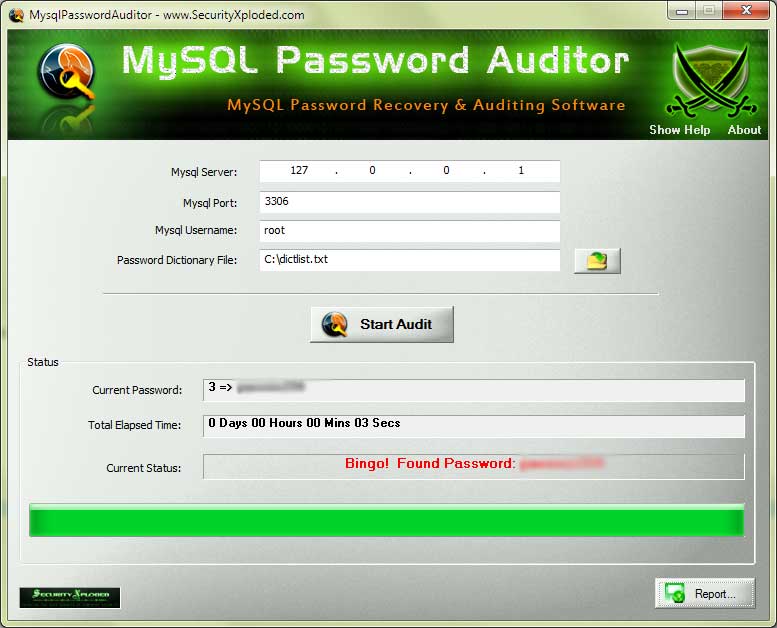
MyMysqlPasswordAuditor is GUI application which is easy to use even for beginners.
Here are simple steps |
- Launch MysqlPasswordAuditor on your system from installed
location.
- Enter your Mysql server IP address, port number,
username for which to recover the password.
- Next select
or drag & drop the password list file (you can find one in
the installed location)
- Finally click on 'Start
Audit' button to start the Mysql Password recovery
operation.
- You will see detailed statistics during password audit
operation
- On success, it will display the recovered
password as shown in the screenshot below.
- Else you will see the failure message and you can then
try with bigger password list file.
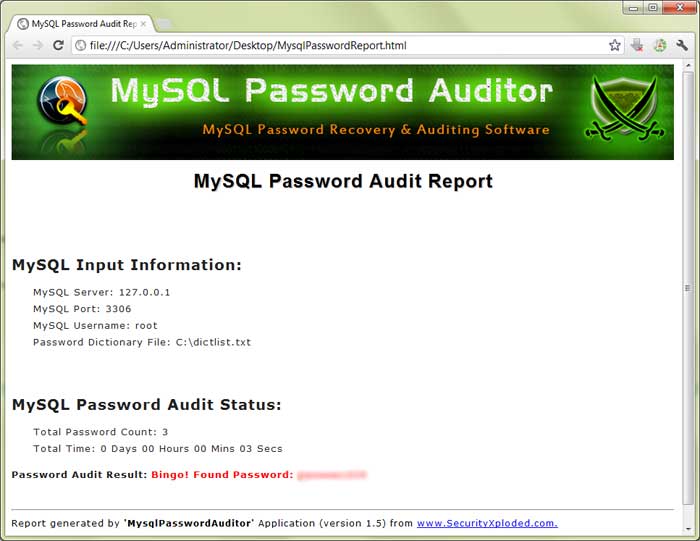
- Finally you can generate the audit report in HTML/XML/Text format by clicking on 'Export' button and then select the type
of file from the drop down box of 'Save File Dialog'.
|
|
|
|
|
|
|
|
| Screenshot 1: MysqlPasswordAuditor is showing
the recovered Mysql Password |
| |
 |
| |
| |
| Screenshot 2: Final Audit report in HTML format generated by MysqlPasswordAuditor. |
| |
 |
| |
| |
| |
|
| Support for Windows 8. Added new feature to automatically remember and restore user input settings. |
| |
| Generate Password audit report in HTML/XML/TEXT format. Improved UI interface with cool banner. |
| |
| First public release of MysqlPasswordAuditor |
| |
| |

|
| |
|
| Thanks to MySql community for their open contibution and taking it
to greater heights day by day. |
| |
| |
|
|
|
| |
| |
| |
| |
|
|
| |
| |
| |
| |
| |
| |
| |
| |
| |
| |
| |
| |